








Quick Summary
- Wholesale POS-ERP integration moves nine data objects, from customer credit status to GL postings, so every counter sale reaches the ERP with the right price and units.
- In 2023, 86.3% of large EU enterprises already used an ERP, and Europe’s POS software market is projected to grow by 9.3% per year through 2030.
- You have four options for connecting the systems, ranging from a native ERP POS module to a custom integration layer, with the right choice depending on pricing complexity and system count.
- The build follows seven steps and must withstand nine common failure modes, most of which occur in contract pricing and unit-of-measure conversion.
- With one POS, one ERP, list pricing, and a single warehouse, a native module or connector is enough and custom work is overkill.
When you integrate a wholesale POS system with your ERP, every counter sale flows into the ERP automatically, with the right customer, the agreed price, stock deducted, and the sale recorded in the books.
The difficulty starts with who is buying. A retail POS sells one item at one price to an unknown shopper. A wholesale POS sells to a known customer at a negotiated price, by the case or pallet, on credit, and often in partial pickups.
Most enterprise distributors we work with have connected the two systems, and the connection runs fine. The problem is that each team set up pricing, units, and credit rules separately and never reconciled them, so sales arrive in the ERP with the wrong price or quantity and finance corrects them by hand before close.
That is why we wrote this guide.
Here we show you how to make both systems agree on every sale, map every object you need to move and which system owns it, follow a sale into the general ledger, lay out a seven-step build sequence, and identify cases where these integrations usually break.
By the end, you will know how to integrate your wholesale POS system with the ERP so that every counter sale lands correctly and finance closes the month without manual fixes.
What Makes a Wholesale POS System Different from a Retail POS
The first step is to understand how a wholesale POS differs from a retail one, because every difference is a piece of data your integration has to move.
A wholesale POS system sells to a known business account at a negotiated price, in cases or pallets, on credit terms, and often ships the order in parts. A retail POS sells single items at list price to an anonymous shopper who pays on the spot.
Take a retail checkout. The cashier scans a product, the POS looks up the list price, the shopper pays by card, and the sale is done. The ERP only needs to learn what sold, for how much, and how much stock is left.
Now take a distributor’s counter. A contractor walks in and asks for 40 cases of a product. To complete that sale, the POS has to do five extra things:
- Find the account. The sale belongs to a specific business customer with its own terms and history.
- Apply the contract price. That customer pays the price written in their agreement.
- Check the credit. The customer pays later, on terms, so the POS has to know whether their credit limit allows the order.
- Convert the units. The customer orders cases, the warehouse counts pieces.
- Handle a partial pickup. If only 25 cases are in stock, the POS ships 25 and backorders 15.
Each step produces data, and every piece of it must reach the ERP unchanged.
The table below shows the full set of differences.
| Dimension | Retail POS | Wholesale POS |
| Customer | Anonymous shopper | Named business account with order history |
| Pricing | One list price per item | Contract, tiered, or customer-specific price |
| Payment | Card or cash at checkout | On account, with credit limit and terms |
| Units | Each | Each, case, or pallet, with UOM conversion |
| Fulfillment | Carry-out | Will-call, pick-and-pack, or delivery, often partial |
| Returns | Receipt-based refund | RMA with restocking rules |
| Tax | Sales tax at checkout | Exemption certificates by customer |
In most distributors, the ERP already owns the customer, pricing, and stock data.
In 2023, 86.3% of large EU enterprises reported using an ERP. So your wholesale POS software has to fit into a system that already owns it, and the next section maps what moves between them.
What Data a POS and ERP Sync Solution Moves: The Wholesale Data Map
Now that you know what a wholesale sale includes, the next step is to list every piece of data that has to travel between the POS and the ERP, and decide which system owns it. That list is called the data map, and it becomes the blueprint for the whole integration.
A POS and ERP sync solution moves nine kinds of data, called objects. Some flow from the ERP to the POS, some flow back, and each one has an owner and a refresh rate.
Before you read the map, here are the three terms you will use for the rest of the project:
- Object. A type of data the integration moves, such as a customer record, a price list, or a sales order.
- Direction and cadence. Which way the object travels and how often. A credit limit has to reach the counter within seconds, while a GL summary can wait for the nightly batch.
- System of record. The one system that holds the true version of the object. The other system only receives copies.
The Wholesale POS-ERP Data Map
| Object | Direction | Cadence | System of record |
| Customers and credit status | ERP to POS | Near real time | ERP |
| Price lists and contract pricing | ERP to POS | On change | ERP |
| Product master and UOM conversions | ERP to POS | On change | ERP |
| Inventory and availability | ERP to POS, POS deductions back | Near real time | ERP or WMS |
| Sales orders and invoices | POS to ERP | Per transaction | ERP after posting |
| Payments and settlements | POS to ERP | Per transaction, settlement daily | ERP |
| Returns and RMAs | POS to ERP | Per transaction | ERP |
| Tax rules and exemption certificates | ERP to POS | On change | ERP |
| GL postings | POS to ERP, summarized | Daily batch | ERP |
Look at the last column. Almost every row says ERP, and that is no accident. The rule behind that column is the single most important design decision in the whole integration, so the next part explains it before we move on.
One system of record per object
For every object, name one system of record, and let the integration copy that version to the other side. When both systems can edit the same object, they drift apart, and nobody can say which price or stock count is correct.
In a wholesale POS system integration, the ERP owns almost everything, because it already holds the accounts, contracts, and stock. The POS owns only what happens at the counter, meaning the order, the payment, and the return, and hands each of them to the ERP the moment it is complete.
That is also how you automate sales data syncing between POS and ERP without manual re-entry. The POS creates the transaction, the integration posts it, and the ERP takes over from there. If you also sell online, the same ownership rule applies to the web store, and we cover that side in our guide to ecommerce integration with ERP.
Building this map is most of the design work in POS and ERP integration services.
POS Accounting Integration with Wholesale: GL Postings, AR, and the Month-End Close
The data map told you which system owns each object. This section follows one of those objects, the sale, from the counter into the company’s books, because that is where every pricing and quantity error finally lands, on the finance team’s desk at month-end.
What accounting needs from every sale
When a company sells something, its accounting has to record three facts. What was sold and at what price, whether the customer paid or still owes the money, and how the sale changes the company’s accounts. In the ERP, those three facts live in three records:
- The invoice. What the customer bought, at what price, and on what terms.
- The receivable or the payment. The money the customer owes, or the money they already paid.
- The journal entries. Lines in the general ledger that move value between accounts, for example from inventory to cost of goods sold.
A POS accounting integration creates all three from a single counter sale, without anyone in finance having to type them in.
Following one sale into the books
Take the contractor buying 40 cases again, this time on 30-day terms. Here is what happens after the POS completes the sale:
- The POS closes the sale and hands it to the integration with the customer, the contract price, the quantity in cases, and the payment terms.
- The integration creates an invoice in the ERP for that customer, at that price.
- The ERP records a receivable. The customer owes the invoice amount for the next 30 days.
- The ERP posts the journal entries. Revenue goes up, sales tax payable goes up if the sale is taxable, and the cost of the 40 cases moves from inventory to cost of goods sold.
- The customer pays 30 days later. The ERP applies the payment to the invoice and clears the receivable.
Every event at the counter has its own pair of postings. The table below is the cheat sheet for the ones a wholesale counter produces most often.
| POS event | Debit | Credit | When it posts |
| Sale on account | Accounts receivable | Revenue, sales tax payable | Per transaction |
| Card sale | Card clearing account | Revenue, sales tax payable | Per transaction |
| Card settlement | Bank, processor fees | Card clearing account | Daily |
| Deposit or payment on account | Bank | Accounts receivable or customer deposits | Per transaction |
| Return with restocking fee | Revenue reversal | Accounts receivable, restocking fee income | Per transaction |
| Cost of goods sold | Cost of goods sold | Inventory | Per transaction or daily |
How wholesale payments differ from retail payments
In retail, the money arrives from the card processor within a day or two, and the sale is done. In wholesale, the customer promises to pay later, so the integration must track two kinds of money: money already received and money still owed.
| Type of sale | When the money arrives | What the ERP matches it against |
| Card sale | From the processor, in 1 to 2 days | Processor’s daily settlement report |
| Sale on account | From the customer, in 30 to 60 days | Open invoice for that customer |
| Deposit or prepayment | On the day of the sale | Future invoice for that order |
The integration has to keep these paths separate. If it treats a sale on account as if the money had already arrived, the ERP bank balance will be wrong until the customer actually pays.
How tax exemptions work at the counter
Many wholesale customers buy goods to resell them, and resellers usually do not pay sales tax. Instead, they give the distributor a tax exemption certificate. The ERP stores that certificate on the customer’s account, and the POS has to check it before charging tax.
Two mistakes are possible here. The POS charges tax to an exempt customer, who then disputes the invoice. Or the POS skips tax for a customer who should pay it, and the distributor still owes that tax to the state. Both mistakes surface months later, when someone prepares the tax return.
How to close the month without surprises
Closing the month means finance confirms that every sale the POS reported is in the ledger, at the same amount. Any difference has to be found and explained before the books can close. In a POS accounting integration with wholesale customers, three things cause most of those differences:
- Unposted batches. The integration failed to send some transactions, so the POS shows sales the ledger never received.
- Returns across months. A customer returns an item bought in May in June, and the return references an invoice from a closed period.
- Late settlements. A card sale on the 31st is settled by the processor on the 1st, so the sale and the money land in different months.
The way to avoid all three is a daily reconciliation. Every night, the integration compares POS sales, payments, and returns against the ERP postings and produces a list of differences. If someone fixes that list every morning, there is nothing left to find at month-end, and the close takes hours instead of a week.
With the accounting path in place, you have everything you need to design the integration. The next section walks through the build, step by step.
How to Integrate with a Wholesale POS System: Step by Step
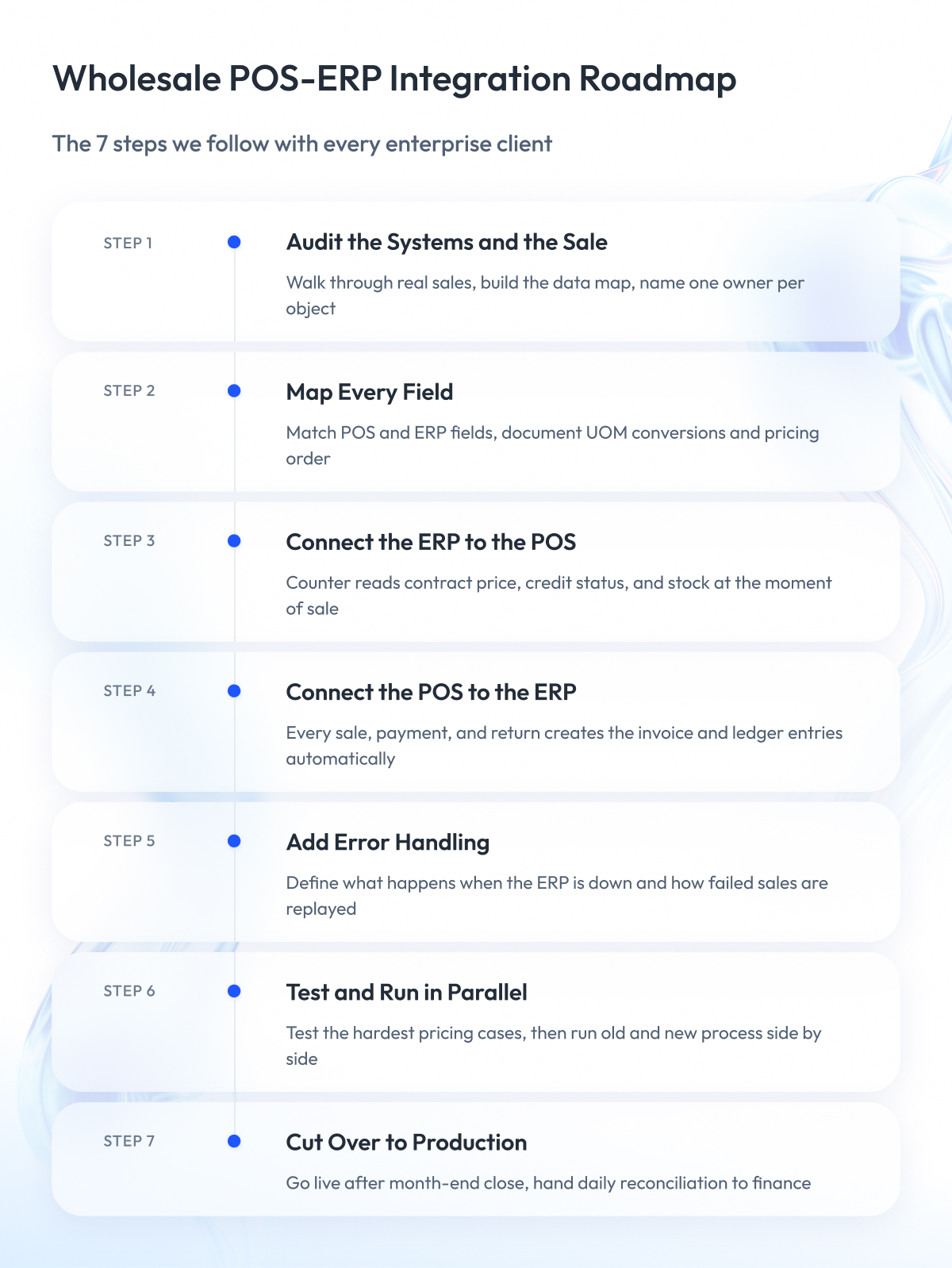
By now you know the three things that make this integration hard. You know how a wholesale sale differs from a retail one, which nine objects move between the POS and the ERP, who owns each, and how a counter sale turns into an invoice, a receivable, and a set of ledger entries.
With that in place, we can show you how to integrate with a wholesale POS system in practice.
Below are the seven steps we go through with every enterprise client who comes to us with this request, and what you get at the end of each one.
Step 1 – Audit the systems and the sale
When a client comes to us with a POS-ERP integration request, we start by sitting down with their finance, warehouse, and counter staff and walking through a few real sales from start to finish. We look at how the counter finds the customer today, where the contract price comes from, how the warehouse counts stock, and how the sale reaches the books.
Along the way, we build a data map for that company and agree with each team which system they trust for each object.
Output: a signed-off data map with one system of record per object.
Step 2 – Map every field
Next, we open both systems and match fields one-to-one, so the integration knows exactly where each piece of data goes. We spend the most time on two areas:
- Units of measure. We write down the conversion factor for every product and decide which system stores it.
- Pricing. We document every price level the ERP holds, such as list, tiered, and contract, and the order in which the POS must apply them.
Output: a field mapping document with the UOM conversion table and the pricing order.
Step 3 – Connect the ERP to the POS
We build the first direction of the integration, from the ERP to the counter. The POS can read the customer’s contract price, credit status, and stock availability at the moment of sale, and receives product data, price lists, and tax rules whenever they change in the ERP.
We choose the technical pattern per object, as explained in the next section.
Output: a POS that shows the correct contract price, credit position, and availability for any customer.
Step 4 – Connect the POS to the ERP
We build the second direction, from the counter to the ERP. When the POS completes a sale, the integration converts it using the field map from Step 2 and creates the order in the ERP, which then produces the invoice, the receivable, and the ledger entries on its own.
The same path carries payments, deposits, and returns. We also add a log of every transaction sent, so nothing posts twice.
Output: a counter sale that appears in the ERP as an invoice with the right customer, price, and units.
Step 5 – Add error handling
We define what happens when something goes wrong, because it will. The ERP goes down for maintenance, a customer record is missing, a price list has a gap.
For each case, we agree with the client whether the POS completes the sale and queues it or blocks it, who gets notified, and how the failed transaction is replayed once the problem is fixed.
Output: an error queue with a rule for each failure and a way to replay failed transactions.
Step 6 – Test and run in parallel
We test the integration with the client’s hardest cases, taken from real customer contracts:
- A customer with three price tiers.
- A product sold in eaches, cases, and pallets.
- An account at its credit limit.
- A partial pickup with a backorder.
Then we run the new integration alongside the old process for a few weeks, compare the results daily, and investigate every difference.
Output: a passing test suite and a run of consecutive days with zero unexplained differences.
Step 7 – Cut over to production
We switch the counter to the new integration on a quiet day, ideally right after a month-end close, so the first full month runs on one system. We keep the daily reconciliation running permanently, hand it over to the client’s finance team, and watch the error queue closely for the first weeks.
Output: a live integration with a daily reconciliation report that finance owns.
This is the same sequence we follow in custom software development for distributors, alongside the ERP and POS work itself.
Real-Time POS ERP Integration vs. Batch: Patterns and Sync Cadence
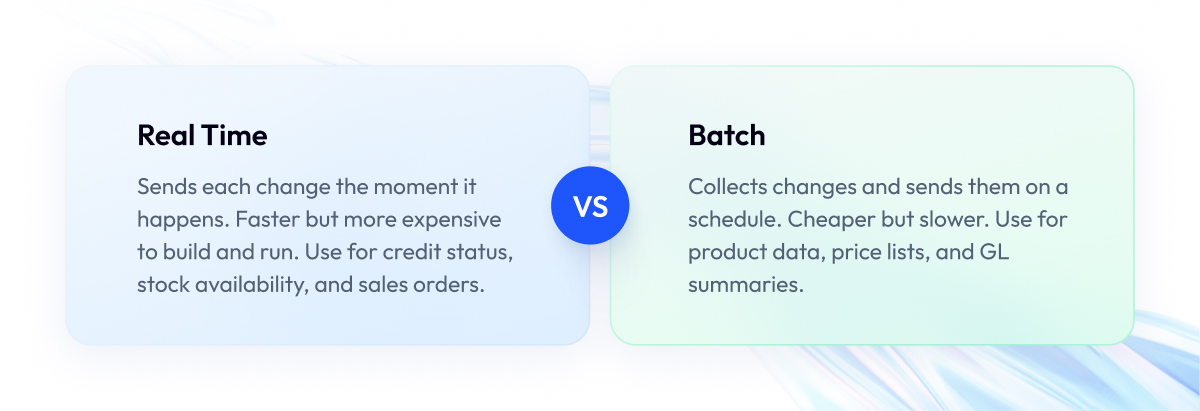
In this section, we compare real-time POS ERP integration with batch, as this comparison determines how up-to-date the data at the counter is and how much the integration costs to build and run. In Step 3, we chose how each object travels, and this is the choice behind it.
There are two ways to send data between the POS and the ERP. You can send it immediately, the moment something changes, like a text message.
Or you can collect the changes and send them together on a schedule, like the daily mail. The first way is called real time, the second is called batch.
Real time is faster but more expensive to build and run. Batch is cheaper but slower. So for each object, we ask one question: what goes wrong at the counter if this data is a few hours old?
| Data | How we send it | Why |
| Credit status | Immediately | Counter must know the limit before selling |
| Stock availability | Immediately | Counter must know what is in stock right now |
| Sales orders and payments | Immediately | ERP records the sale the same minute |
| Product data and price lists | When they change | They change a few times a week |
| GL summaries | Once a night | Finance reads them next morning |
The technical way to send the data depends on what your systems support. There are four common options:
| Option | In plain terms | Use it when |
| API | The systems talk to each other directly | Both systems are modern |
| Scheduled batch | The integration sends a bundle every hour or night | The data can wait |
| Middleware or iPaaS | A third-party platform sits in the middle and translates | You have several systems to connect |
| File drop | The systems leave files for each other in a shared folder | Your ERP is old and has no API |
Most wholesale POS system integrations end up with a mix. The first three rows of the data table go through an API, the last two go through a nightly batch. If your ERP is too old for an API, we build a small one on top of it, just for credit and stock, so the counter never sells on stale data.
The next section applies the same thinking to a harder case, one customer buying through several channels at once.
Omnichannel B2B: How to Keep Every Sales Channel in Sync
In this section, we look at what happens when the same customer buys through more than one channel, because for a distributor that is the normal case. The contractor from our example may buy at the counter on Monday, order through your web portal on Tuesday, and call a sales rep on Wednesday.
Each of those channels is a different piece of software. The counter runs on the POS, the portal is an eCommerce platform, and the rep uses a mobile app or the CRM. The customer expects all three to behave as one company.
Why every channel must read from the ERP
The data map from earlier already answers this. The ERP owns the customer, the contract price, the credit limit, and the stock, so every channel has to read these from the ERP and never keep its own copy. If the portal stores its own price list, the customer will see one price online and another at the counter, and will call to ask which one is right.
The same goes for orders. A customer who starts an order on the portal and finishes it at the counter should find the same cart waiting for them. That only works when every channel writes orders to the ERP and reads them back from there.
| What the customer sees | Where it must come from | What breaks otherwise |
| Their price | ERP contract pricing | Different prices per channel |
| Their credit room | ERP credit status | Portal accepts an order the counter would block |
| Stock availability | ERP or WMS | Two channels sell the same last pallet |
| Their open orders | ERP order list | Counter cannot see what the portal took |
What omnichannel support looks like in POS ERP integration services
When a client asks us whether POS ERP integration services can support omnichannel, they usually need one integration layer every channel goes through, with the ERP as the single owner of pricing and credit.
We build that as part of omnichannel POS integration, and the same layer later serves any new channel the client adds.
Two cases come up most often:
- Will-call. The customer orders online and picks up at the counter, so the POS has to see the portal order and close it.
- Rep-assisted ordering. The rep builds the order on a tablet and the customer confirms it, so the mobile app has to apply the same pricing and credit rules as the POS.
Retail data shows why this matters. Omnichannel shoppers purchase 70% more often than in-store-only shoppers, and wholesale customers behave the same way once every channel shows them the same price and stock.
We have built this kind of setup before, for example, in a B2B commerce platform for Wish, where the ERP stayed the owner of pricing across channels. The next section lists where these integrations break in practice.
Where Wholesale POS-ERP Integrations Break (and How to Fix Each One)
In this section, we list how wholesale POS-ERP integrations fail in practice, because knowing them in advance is the cheapest way to avoid them. Each one traces back to something only a distribution POS has to handle, such as contract pricing, units of measure, credit, partial shipments, or returns.
Most wholesale POS system integrations fail on pricing and units of measure, and rarely on connectivity. The two systems talk to each other fine. They disagree about what a sale means.
Here are the nine failures we see most often, with a fix for each:
| Failure | How it shows up | Fix |
| 1. Contract price resolves differently in POS and ERP | Counter quotes one price, invoice shows another | ERP calculates the price, POS only reads it |
| 2. UOM conversion error | 40 cases invoiced as 40 pieces | One conversion table in ERP, used by both |
| 3. Stale credit check | Counter sells to an account over its limit | Credit status read live at sale time |
| 4. Partial shipment | ERP invoices the full order, half is on backorder | POS sends shipped and backordered lines separately |
| 5. Lot or serial tracking at the counter | Warehouse cannot tell which lot left | POS captures lot or serial on every line |
| 6. RMA and restocking fee | Return refunds full price, fee never posts | Return carries fee as its own line |
| 7. Multi-warehouse allocation | POS deducts stock from the wrong branch | Warehouse ID sent with every order line |
| 8. Tax exemption certificate ignored | Exempt customer charged tax, or taxable one skipped | POS reads exemption status from ERP customer record |
| 9. Rounding difference at close | Ledger off by cents, weeks to find | Same rounding rule in both systems, applied per line |
Two of these cause most of the damage, so they deserve a closer look.
Contract pricing. A wholesale ERP can hold several prices for the same product and the same customer at once:
- A list price
- A volume tier
- A contract price
- A promotion
If the POS tries to calculate the final price itself, it will eventually apply them in a different order than the ERP does. The fix is to let the ERP do the calculation and have the POS ask for the result.
Units of measure. The counter sells in cases and pallets, the warehouse counts pieces, and the customer’s invoice may show either. If the conversion factor lives in two places, the two copies will drift apart the first time someone updates a product. The fix is one conversion table in the ERP that every system reads.
Every fix in the table follows the same principle as the data map. One system owns the rule, and the other system reads it. The next section shows how much of this changes if you come from a retail background.
Retail POS ERP Integration vs. Wholesale: What Changes in the Integration
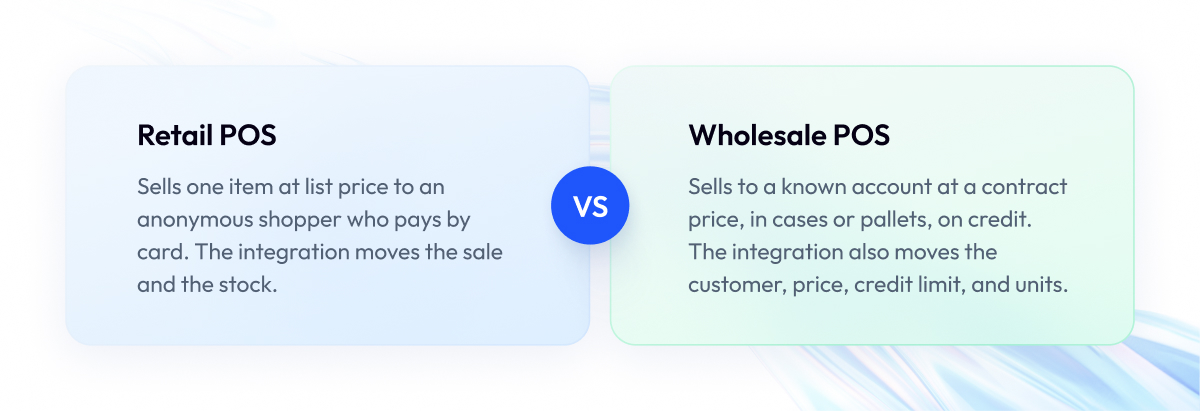
In this section, we answer a question we get from clients who already run a retail POS ERP integration and are adding a wholesale counter: how much of what they have can they keep?
The short answer is about half. The parts of the integration that move products, stock, and sales into the ERP work the same way in both worlds. The parts that deal with the customer have to be built from scratch, because a retail integration never had to know who the customer was.
What carries over from ERP software with POS integration for brick-and-mortar retail
| Integration part | Retail | Wholesale |
| Product master sync | Carries over | Carries over, plus UOM conversions |
| Stock deduction on sale | Carries over | Carries over, plus warehouse ID per line |
| Sales posting to GL | Carries over | Carries over, plus AR and deposits |
| Card settlement matching | Carries over | Carries over, smaller share of sales |
| Customer account lookup | Missing | Must be built |
| Contract pricing | Missing | Must be built |
| Credit limit check | Missing | Must be built |
| Tax exemption handling | Missing | Must be built |
| RMA with restocking fee | Missing | Must be built |
If you are on the other side, running a brick-and-mortar retail chain with no wholesale counter, most of this guide is more than you need. The store-to-ERP part of your retail ERP integration follows the same data map and the same seven steps, only with fewer objects, and we cover that side in our retail POS development work.
The next section takes the last decision: whether to build this integration, buy it, or connect it.
Build, Buy, or Connector? Choosing a POS and ERP Sync Solution and a Partner
In this section, we cover the last decision: who builds the integration and how. There are four ways to get a POS and ERP sync solution, and the right one depends on how complex your pricing is and how many systems you connect.
Here is the rule we use with clients:
- Buy the native POS module of your ERP if you sell at list price from one warehouse and your ERP vendor offers a counter module. It will be basic, and it will be enough.
- Connect with a pre-built connector or an iPaaS platform if your wholesale POS software and ERP are both standard products, your pricing is simple, and you move the same objects every retailer does.
- Build a custom integration layer if your sales depend on contract pricing, units of measure, credit terms, or several warehouses, or if your ERP is old and has no API. That is most distributors.
The table shows the four options in more detail.
| Option | What it is | Fits when | Limits |
| Native ERP POS module | POS built into the ERP by the vendor | One ERP, list pricing, single warehouse | Counter features often basic |
| Pre-built connector | Off-the-shelf link between one POS and one ERP | Standard POS and ERP, list pricing | Contract pricing and UOM rarely covered |
| iPaaS platform | Middleware you configure to connect several systems | Three or more systems, in-house admin | Complex pricing logic hard to configure |
| Custom integration layer | Code written for your objects and rules | Contract pricing, multi-warehouse, legacy ERP | Needs a team to build and maintain |
The line falls where it does because of the failure list from the previous section. Connectors and native modules handle the objects every retailer has. They break on the objects only wholesalers have, and once they break, your team fixes those sales by hand.
The cost of a custom build depends on four things: how many objects you move, how complex your pricing rules are, whether your ERP has an API, and whether you run more than one legal entity. We can only give a range after reviewing those, which is why we start every project with the audit in Step 1.
How to evaluate a POS and ERP integration partner
Many companies offer POS and ERP integration services, and most of them have only connected a retail POS. Before you trust one with a wholesale POS system, do five things:
- Check their distribution experience. Ask for a project where they integrated a counter with contract pricing and credit terms, and talk to that client.
- Review their pricing and UOM design. Have them show you where the price is calculated and where the conversion table lives. Both should be in the ERP.
- Test their error handling. Have them walk you through what happens to a sale when the ERP is down and how they replay it afterward.
- Confirm the cutover plan. Make sure the plan includes a parallel run with daily reconciliation before go-live.
- Agree on support. Write down who watches the error queue after the project ends and how fast they respond.
We build these integrations as part of our POS integration services, with the seven-step sequence from this guide. Two examples of related work are an ERP customization project and a multi-region POS payments platform. Europe’s POS software market is projected to grow 9.3% a year through 2030, so the number of vendors will keep growing, and the questions above are how you tell them apart.
Final Word
If you have read this far, you already know that a wholesale POS system integration goes wrong on prices, units, and credit, long before anyone notices a connectivity problem.
Getting it right takes work. You have to sit finance, warehouse, and counter staff in one room, argue about who owns each object, and test the integration against your ugliest contracts before you trust it with a single sale.
It is worth doing. A distributor with a broken integration pays for it every month, in a close that takes a week and in customers who call to ask which price is right. A distributor with a working one forgets the integration exists.
Start with the data map. Fill it in for your company, name one system of record per object, and only then talk about connectors, platforms, or code.
If you want a second pair of eyes on that map, we are ready to review your POS, ERP, and pricing rules and tell you which path fits before you commit to any of them.
Questions You May Have
What is wholesale POS-ERP integration?
Wholesale POS-ERP integration ensures every counter sale reaches the ERP with the correct customer account, contract price, unit of measure, credit terms, and ledger posting, with no manual re-entry.
How do you integrate a wholesale POS system with an ERP?
You name one system of record for each data object, map the fields including units of measure and pricing order, build both data flows, add error handling, and run the old and new process in parallel before cutover.
How do POS sales post to accounting and the general ledger?
The integration creates an invoice in the ERP for each counter sale, records a receivable or a payment, and posts journal entries for revenue, tax, and cost of goods sold.
Does POS-ERP integration need to be real time?
Only credit status, stock availability, and sales orders need real-time POS-ERP integration, while product data, price lists, and GL summaries can be updated on change or in a nightly batch.
How is wholesale POS integration different from retail?
A wholesale integration has to move the customer account, contract pricing, credit limit, units of measure, and tax exemptions, none of which a retail POS integration ever deals with.
How do you handle contract pricing and units of measure?
You let the ERP calculate the final price and store the single UOM conversion table, and the POS only reads both, so the two systems can never disagree.
Can a POS integrate with an existing ERP without replacing it?
Yes, and if the ERP has no API, a small API layer built on top of it for credit status and stock availability is enough to make the integration work.
How long does a POS-ERP integration take?
The timeline depends on how many objects you move, how complex your pricing rules are, whether your ERP has an API, and how many legal entities you run, so we give a range only after the initial audit.
Which companies offer reliable POS and ERP integration services?
Reliable providers have already integrated a counter with contract pricing and credit terms, calculate prices in the ERP, and run a parallel reconciliation before go-live.
Do POS ERP integration services support omnichannel retail?
Yes, and the ones that work use a single integration layer through which the counter, web portal, and sales rep tools all read pricing, credit, and stock from the ERP.
Does wholesale POS software need its own price list?
No, wholesale POS software should read every price from the ERP at the moment of the sale, because a separate price list in the POS is the most common cause of pricing mismatches.